
SOLIDWORKS Macro - Create Sweep Cut
Objective of this article is to learn how to create Sweep Cut through SOLIDWORKS VBA Macros in SOLIDWORKS.
We create Sweep Cut through in 2 steps.
- Create sweep cut feature definition
- Create sweep cut feature using above feature definition
This method is most updated method, so use this method if you want to create a new Sweep Cut.
Steps To Create Sweep Cut
We use following steps to create Sweep Cut
A. Select Profile for Sweep Cut.
- Inform user to select Profile for Sweep Cut.
- User select the Profile for Sweep Cut.
B. Select Path for Sweep Cut.
- Inform user to select Path for Sweep Cut.
- User select the Path for Sweep Cut.
Results We Can Get
We either create Sweep Cut feature or failed to create the feature as a result.
Both cases are shown below.
- When user select correct Profile and Path, we will have result as shown in below image.
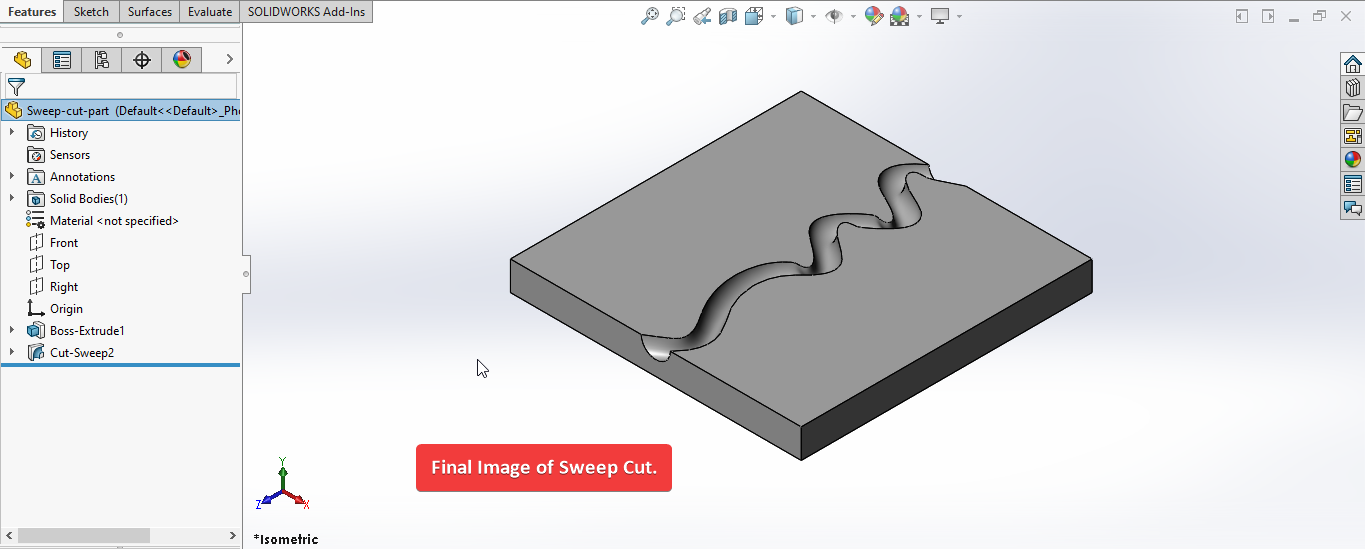
- When user select Incorrect Profile and Path, we will have result as shown in below image.
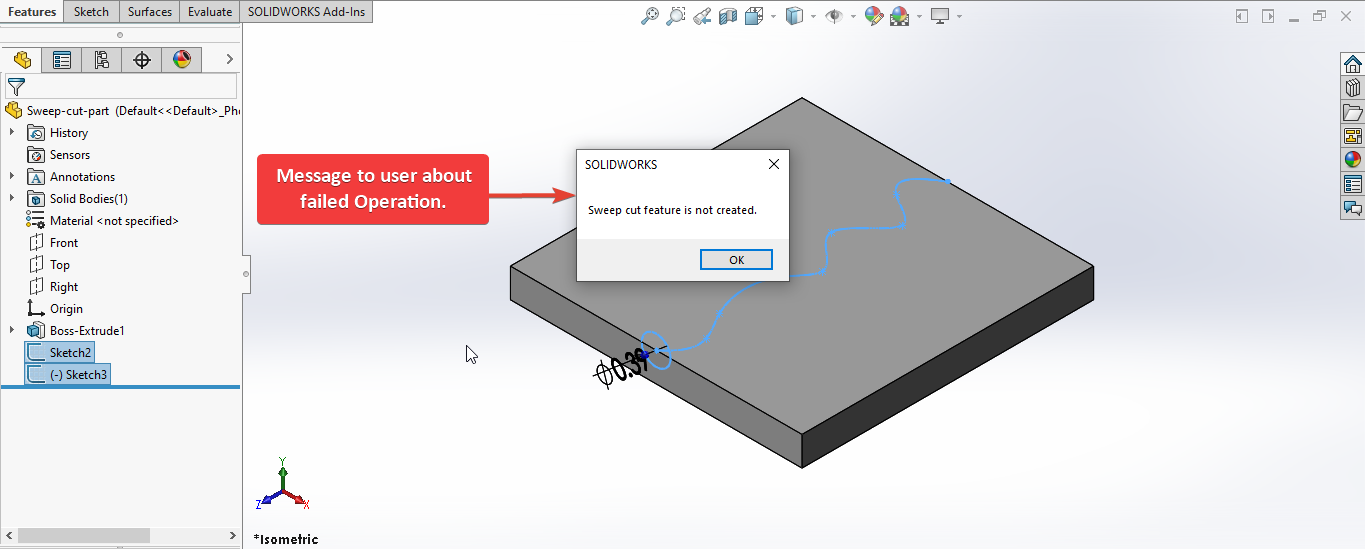
To get the correct result please follow the steps correctly.
Video of Code on YouTube
Please see below 🎬 video on how to create Sweep Cut from SOLIDWORKS VBA Macros.
How to Create Sweep Cut
Please note that there are no explanations in the video.
Explanation of each step and why we write code this way is provided in this post.
Code Sample
Below is the code for creating Sweep Cut feature in VBA is given.
Option Explicit

' Variable for Solidworks application
Dim swApp As SldWorks.SldWorks

' Variable for Solidworks document
Dim swDoc As SldWorks.ModelDoc2

' Variable for Solidworks Selection Manager
Dim swSelMgr As SldWorks.SelectionMgr

' Array of Solidworks Entities
Dim swObjects(1 To 2) As SldWorks.Entity

' Variable for Solidworks Entity
Dim swObject As SldWorks.Entity

' Variable for Solidworks sweep feature
Dim swFeature As SldWorks.Feature

' Variable for Solidworks sweep feature data
Dim swSweep As SldWorks.SweepFeatureData

' Variable for Solidworks Select Data
Dim swSelData As SldWorks.SelectData

' Sweep feature program
Sub main()

  ' Set Solidworks variable to current application
  Set swApp = Application.SldWorks

  ' Check if Solidworks opened or not
  If swApp Is Nothing Then
    MsgBox ("Solidworks is not opened.")
    Exit Sub
  End If

  ' Set Solidworks document variable to currently opened part document
  Set swDoc = swApp.ActiveDoc

  ' Check if Solidworks part is opened or not
  If swDoc Is Nothing Then
    MsgBox ("Solidworks part is not opened.")
    Exit Sub
  End If

  ' Set Solidworks Selection Manager variable
  Set swSelMgr = swDoc.SelectionManager

  ' Local variable for selection
  Dim selectItems As Integer
  selectItems = 1

  ' Loop till we select all entities
  While selectItems <= 2

    ' Message to show user
    Dim messageToUser As String

    ' Update Messages
    Select Case selectItems
      Case 1
        messageToUser = "Please select Profile Sketch from Feature tree for Sweep Cut."
      Case 2
        messageToUser = "Please select Path Sketch from Feature tree for Sweep Cut."
      Case Else
        Exit Sub
    End Select

    ' Show message to user
    MsgBox messageToUser

    ' Loop until we complete our selection
    While swObjects(selectItems) Is Nothing

      ' Local integer for loop
      Dim i As Integer

      ' Loop until we select
      For i = 1 To swSelMgr.GetSelectedObjectCount2(-1)

        ' If the profile sketch is selected
        If swSelMgr.GetSelectedObjectType3(i, -1) = swSelectType_e.swSelSKETCHES Then

          ' Set the Solidworks Entity object to profile sketch
          Set swObjects(selectItems) = swSelMgr.GetSelectedObject6(i, -1)

        ' If the profile sketch is selected
        ElseIf swSelMgr.GetSelectedObjectType3(i, -1) = swSelectType_e.swSelEXTSKETCHSEGS Then

          ' Inform user to select sketch from Tree
          MsgBox "Please select Profile/Path sketch from Feature Tree."

          ' Clear selection
          swDoc.ClearSelection2 True
        End If
      Next

      DoEvents
    Wend

    ' Clear previous selection
    swDoc.ClearSelection2 True

    ' Increase the selection count
    selectItems = selectItems + 1

  Wend

  ' Clear all selection
  swDoc.ClearSelection2 True

  ' Local variable for counter
  Dim j As Integer
  j = 1

  ' Loop till counter is 2, since we have 2 selection
  While j < 3

    ' Set the current instance to Solidworks Entity variable
    Set swObject = swObjects(j)

    ' Create Select data for this entity
    Set swSelData = swSelMgr.CreateSelectData

    ' Depend upon the entity we update the mark while selection
    Select Case j
      Case 1
        ' For profile, set mark to 1
        swSelData.Mark = 1
        ' Select the profile
        swObject.Select4 True, swSelData
      Case 2
        ' For path, set mark to 4
        swSelData.Mark = 4
        ' Select the profile
        swObject.Select4 True, swSelData
    End Select
    j = j + 1

  Wend

  ' Create sweep cut feature definition
  Set swSweep = swDoc.FeatureManager.CreateDefinition(swFmSweepCut)

  ' Create sweep cut feature
  Set swFeature = swDoc.FeatureManager.CreateFeature(swSweep)

  ' Check if Sweep cut feature is created or not
  If swFeature Is Nothing Then
    MsgBox ("Sweep cut feature is not created.")
    ' Erase array data
    Erase swObjects
    Exit Sub
  End If

  ' Erase array data
  Erase swObjects

  ' View zoom to fit
  swDoc.ViewZoomtofit2

  ' Clear all selection
  swDoc.ClearSelection2 True

End Sub
Prerequisite
There are some prerequisite for this article.
We are not creating sketches from code but we use existing sketch to create Sweep Cut feature as shown in below picture.
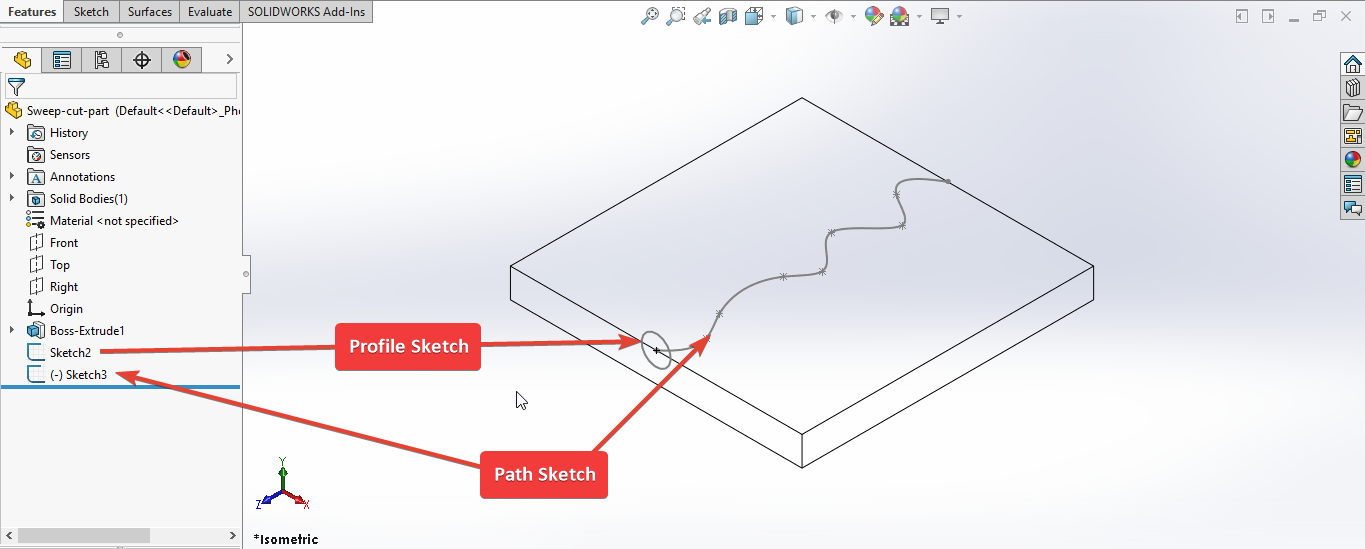
As shown in above image, there are 2 sketches for Profile & Path and 1 Extrude feature in our part.
Extrude Feature: This is our Extrude part for Sweep Cut feature.Sketch2: This is our Profile for Sweep Cut feature.Sketch3: This is our Path for Sweep Cut feature.
If you want to create Sketch2 i.e. Profile programmatically then please refer to below articles.
- For Circle 👉 read SOLIDWORKS Macros - Create Circle article.
If you want to create Extrude feature programmatically then please refer to below article.
Also, we will apply checks in this article, so the code we write should be error free most of the time.
Steps To Follow
For creating Sweep Cut, there are following steps:
- Creating Global Variables
- Initializing required variables
- Ask user to select Profile and Path
- Mark selected Entities
- Create Sweep Cut Feature
- Final work
Now let us walk through each step as given above, and understand every line.
I also give some 📌 links so that you can go through them if there are anything I explained in previous articles.
Creating Global Variables
Option Explicit
This line forces us to define every variable we are going to use.
For more information please visit 👉 SOLIDWORKS Macros - Open new Part document post.
We create following variables.
- Variable for Solidworks application
' Variable for Solidworks application
Dim swApp As SldWorks.SldWorks
In this line, we create a variable which we named as swApp and the type of this swApp variable is SldWorks.SldWorks.
To see methods and properties related to SldWorks.SldWorks object, please visit 👉
this page of SOLIDWORKS API Help
.
- Variable for Solidworks document
' Variable for Solidworks document
Dim swDoc As SldWorks.ModelDoc2
In this line, we create a variable which we named as swDoc and the type of this swDoc variable is SldWorks.ModelDoc2.
To see methods and properties related to SldWorks.ModelDoc2 object, please visit 👉
this page of SOLIDWORKS API Help
.
- Variable for Solidworks Selection Manager
' Variable for Solidworks Selection Manager
Dim swSelMgr As SldWorks.SelectionMgr
In this line, we create a variable which we named as swSelMgr and the type of this swSelMgr variable is SldWorks.SelectionMgr.
To see methods and properties related to SldWorks.SelectionMgr object, please visit 👉
this page of SOLIDWORKS API Help
.
- Array of Solidworks Entities
' Array of Solidworks Entities
Dim swObjects(1 To 2) As SldWorks.Entity
In this line, we create an Array of SOLIDWORKS Entities which we named as swObjects and the type of this SldWorks.Entity variable is SldWorks.Entity.
This array consist two SldWorks.Entity variables.
We define the number of variable this array holds inside (1 To 2).
For more information about the Arrays in VBA please 👉 Array on this website .
- Variable for Solidworks Entity
' Variable for Solidworks Entity
Dim swObject As SldWorks.Entity
In this line, we Create a variable which we named as swObject and the type of this swObject variable is SldWorks.Entity.
We create variable swObject for SOLIDWORKS Entities (Profile and Path) we ask use to select.
To see methods and properties related to SldWorks.Entity object, please visit 👉
this page of SOLIDWORKS API Help
.
- Variable for Solidworks sweep feature
' Variable for Solidworks sweep feature
Dim swFeature As SldWorks.Feature
In this line, we Create a variable which we named as swFeature and the type of this swFeature variable is SldWorks.Feature.
We create variable swFeature for SOLIDWORKS Sweep Cut Feature.
To see methods and properties related to Feature object, please visit 👉
this page of SOLIDWORKS API Help
.
- Variable for Solidworks sweep feature data
' Variable for Solidworks sweep feature data
Dim swSweep As SldWorks.SweepFeatureData
In this line, we Create a variable which we named as swSweep and the type of this swSweep variable is SldWorks.SweepFeatureData.
We create variable swSweep for SOLIDWORKS Sweep Feature Data.
To see methods and properties related to SldWorks.SweepFeatureData object, please visit 👉
this page of SOLIDWORKS API Help
.
- Variable for Solidworks Select Data
' Variable for Solidworks Select Data
Dim swSelData As SldWorks.SelectData
In this line, we create a variable named swSelData as SldWorks.SelectData object type.
We create variable swSelData for SOLIDWORKS Select Data, which we use for Marking selected object.
To see methods and properties related to SldWorks.SelectData object, please visit 👉
this page of SOLIDWORKS API Help
.
These all are our global variables.
They are SOLIDWORKS API Objects.
So basically I group all the SOLIDWORKS API Objects in one place.
' Main function of our VBA program
Sub main()

End Sub
Next is our Sub procedure which has name of main.
This procedure hold all the statements (instructions) we give to computer.
To know more about Sub Procedure you can check 👉 VBA Sub and Function Procedures article of this website.
Initializing Required Variables
Inside this procedure we first initialize required variables as given below.
- Set SOLIDWORKS variable to SOLIDWORKS application
' Set SOLIDWORKS variable to SOLIDWORKS application
Set swApp = Application.SldWorks
In this line, we set the value of our SOLIDWORKS variable swApp; which we define earlier; to SOLIDWORKS application.
' Check if SOLIDWORKS is opened or not
If swApp Is Nothing Then
  MsgBox ("SOLIDWORKS is not opened")
  Exit Sub
End If
In above line of code, we use an 👉 IF statement to check if SOLIDWORKS application variable is successfully assigned to current SOLIDWORKS application.
- Set SOLIDWORKS document variable to opened part document
' Set SOLIDWORKS document variable to opened part document
Set swDoc = swApp.ActiveDoc
In above line of code, we set SOLIDWORKS document swDoc variable to currently open part document.
' Check if SOLIDWORKS document is opened or not
If swDoc Is Nothing Then
  MsgBox ("SOLIDWORKS document is not opened. Please open a document.")
  Exit Sub
End If
In above line of code, we use an 👉
IF statement
to check if SOLIDWORKS document swDoc is opened.
If SOLIDWORKS document is not opened then code execute inside the code and inform the user by a 👉 Message Window .
- Set SOLIDWORKS Selection Manager variable
' Set SOLIDWORKS Selection Manager variable
Set swSelMgr = swDoc.SelectionManager
In above line, we set SOLIDWORKS Selection ManagerswSelMgr variable to current document’s Selection Manager.
- Local variable for User selection
' Local variable for selection
Dim selectItems As Integer
selectItems = 1
In above line of code, we define a Local variable name selectItemsas Integer type.
In next line we assign a value of 1.
Ask user to select Profile and Path
Now we will ask user to select Profile and Path for Sweep Cut feature.
Please follow steps given below.
' Loop till we select all entities
While selectItems <= 2

Wend
In above line of code we start a While loop.
For more details about While loop, please see 👉
VBA Looping
article from this website.
We want to loop until selectItems variable’s value is equal to 2.
' Message to show user
Dim messageToUser As String
In above line of code we create a variable named messageToUser of String type.
This variable holds the message we want to show before selection.
' Update Messages
Select Case selectItems
  Case 1
    messageToUser = "Please select Profile Sketch from Feature tree for Sweep Cut."
  Case 2
    messageToUser = "Please select Path Sketch from Feature tree for Sweep Cut."
  Case Else
    Exit Sub
End Select
In above line of code, we use a Select statement to update message.
We use the case on selectItems
When selectItems = 1 then value of messageToUser update to "Please select Profile Sketch from Feature tree for Sweep Cut."
Similarly, when selectItems = 2 then value of messageToUser update to "Please select Path Sketch from Feature tree for Sweep Cut."
' Show message to user
MsgBox messageToUser
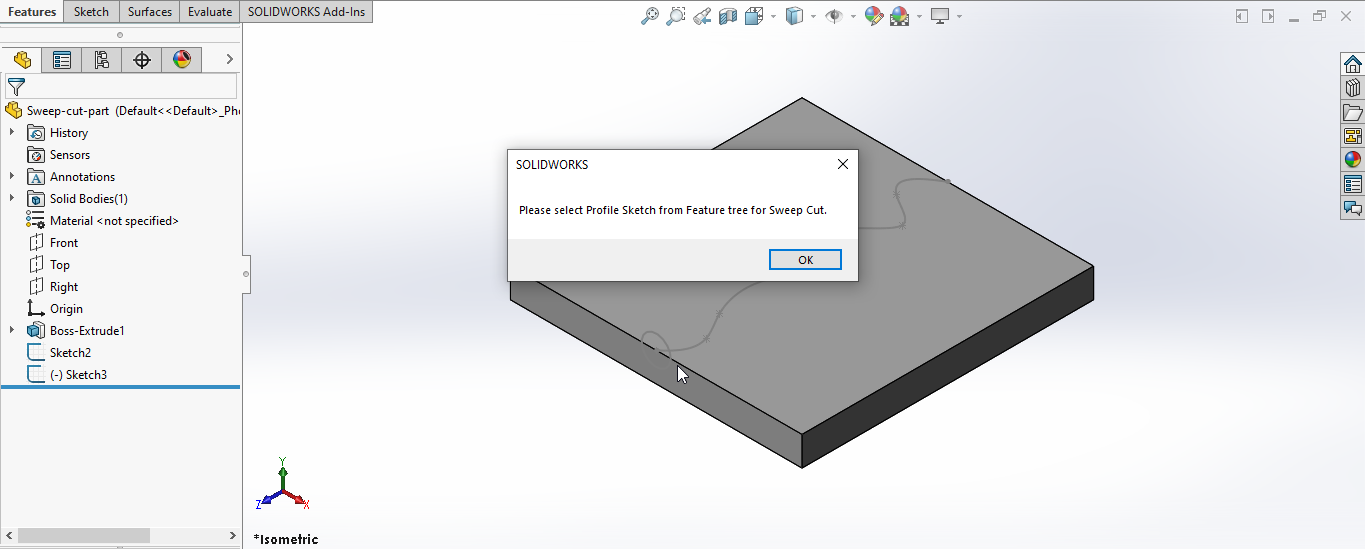
In above line of code, we show the message to user.
Below image show the message to the user.
' Loop until we complete our selection
While swObjects(selectItems) Is Nothing

Wend
In above line of code, we create another While loop.
This loops until we select the our Profile and Path.
For more details about While loop, please see 👉
VBA Looping
article from this website.
' Local integer for loop
Dim i As Integer
In above line of code, we create a local integer name i as a counter.
' Loop until we select
For i = 1 To swSelMgr.GetSelectedObjectCount2(-1)

Next
In above line of code, we create a For loop.
This code loops from i = 1 to number of objects we select.
' If the profile sketch is selected
If swSelMgr.GetSelectedObjectType3(i, -1) = swSelectType_e.swSelSKETCHES Then

  ' Set the Solidworks Entity object to profile sketch
  Set swObjects(selectItems) = swSelMgr.GetSelectedObject6(i, -1)

' If the profile sketch is selected
ElseIf swSelMgr.GetSelectedObjectType3(i, -1) = swSelectType_e.swSelEXTSKETCHSEGS Then

  ' Inform user to select sketch from Tree
  MsgBox "Please select Profile sketch from Feature Tree."

  ' Clear selection
  swDoc.ClearSelection2 True
End If
In above line of code, we use 👉 IF/Else statement with conditions.
The 👉
IF statement
is True when selected object is type of SOLIDWORKS Sketch.
Similarly, 👉
Else statement
is True when select object is type of SOLIDWORKS External Sketch Segment.
When we select the sketch from Model view, then selected object is SOLIDWORKS External Sketch Segment.
When we select the sketch from Feature Tree, then select object is SOLIDWORKS Sketch.
When 👉 IF statement is True we execute code given below.
' Set the Solidworks Entity object to profile sketch
Set swObjects(selectItems) = swSelMgr.GetSelectedObject6(i, -1)
In above line, we set the indexed object inside array.
- Array of SOLIDWORKS Entities =
swObjects - Indexed Entity Object =
swObjects[selectItems]
We set the value of this Indexed Entity Object by GetSelectedObject6() method of SOLIDWORKS Selection Manager.
When we set the Indexed Entity Object value as either Profile or Path, we exit the 2nd While loop.
When we select both Profile and Path, then we exit all While loops.
Similarly, when 👉 Else statement is True we execute code given below.
' Inform user to select sketch from Tree
MsgBox "Please select Profile/Path sketch from Feature Tree."

' Clear selection
swDoc.ClearSelection2 True
- We show message to user to select Profile/Path Sketch from Feature Tree.
- After that we clear our selection.
We do this because if selected object type is SOLIDWORKS External Sketch Segment then we can not assign this object as SOLIDWORKS Entity inside array.
After For loop, we have a call for DoEvents function.
This function repeats the While loop until we select the Profile or Path.
' Clear previous selection
swDoc.ClearSelection2 True

' Increase the selection count
selectItems = selectItems + 1
In above line, when we finished with the Profile or Path selection, we clear previous selection and increment the selected count by 1.
After increment the selected count we continue our while loop.
Mark selected Entities
Till now we have completed our selection.
Now we need to do following things.
- Clear any previous selection
- Select and Mark entities correctly from our Array.
' Clear all selection
swDoc.ClearSelection2 True
In above line of code we clear any previous selection.
' Local variable for counter
Dim j As Integer
j = 1
In above line of code we create integer variable for counter.
' Loop till counter is 2, since we have 2 selection
While j < 3

Wend
In above line of code we create a while loop with condition that counter value of j should be less than 3.
' Set the current instance to Solidworks Entity variable
Set swObject = swObjects(j)
In above line of code, we set the SOLIDWORKS Entity variable to current object from array.
' Create Select data for this entity
Set swSelData = swSelMgr.CreateSelectData
In above line of code, we create SOLIDWORKS Select Data for current SOLIDWORKS Entity object.
' Depend upon the entity we update the mark while selection
Select Case j
	Case 1
    ' For profile, set mark to 1
    swSelData.Mark = 1
    ' Select the profile
    swObject.Select4 True, swSelData
  Case 2
    ' For path, set mark to 4
    swSelData.Mark = 4
    ' Select the profile
    swObject.Select4 True, swSelData
End Select
In above line of code, now use a Select statement on counter j.
Case 1 indicate the first object which is our Profile.
Case 2 indicate the second object which is our Path.
In Case 1, we apply following code.
' For profile, set mark to 1
swSelData.Mark = 1
In above lines, we update the Mark to 1 for our SOLIDWORKS Select Data variable.
For Sweep Cut feature, Mark value for Profile can be follows:
- If a sketch profile, use
Mark = 1to select a face, edge, or curve. For a swept-boss feature, the sketch profile must be closed. For a swept-surface feature, the sketch profile is open or closed. - If a circular profile, use
Mark = 4to select a sketch line, edge or curve.
The circular profile is open or closed. - If a solid profile, use
Mark = 1to select the tool body to use to make the cut and use Mark = 2048 to select the solid body to cut. Solid profiles are used only in swept-cut features.
For more details about 👉 please visit this page of SOLIDWORKS API Help .
' Select the profile
swObject.Select4 True, swSelData
In above line of code, we select the Profile object.
We select it by using Select4 method of SOLIDWORKS Entity object.
This method takes 2 arguments.
- Append -
Trueappends the entity to the selection list,Falsereplaces the selection list with this entity. - Data - Pointer to the
ISelectDataobject.
We use following values as parameter.
- Append -
True - Data -
swSelData
In Case 2, we apply following code.
' For path, set mark to 4
swSelData.Mark = 4
In above lines, we update the Mark to 4 for our SOLIDWORKS Select Data variable.
For Sweep Cut feature, Mark value for Path can be follows:
- Select a set of sketched curves contained in one sketch, a curve, or a set of model edges.
- The sweep path is open or closed.
- The starting point of the sweep path must lie on the plane of the profile for a 1-directional sweep. If the sweep path extends to both sides of the profile, you can create a bidirectional sweep.
- Sweep paths are not used with circular profiles.
For more details about 👉 please visit this page of SOLIDWORKS API Help .
' Select the path
swObject.Select4 True, swSelData
In above line of code, we select the Profile object.
We select it by using Select4 method of SOLIDWORKS Entity object.
This method takes 2 arguments.
- Append -
Trueappends the entity to the selection list,Falsereplaces the selection list with this entity. - Data - Pointer to the
ISelectDataobject.
We use following values as parameter.
- Append -
True - Data -
swSelData
j = j + 1
After Select statement, we increment the counter variable j by 1.
Create Sweep Cut Feature
We have completed our selection and Marking of SOLIDWORKS Entities.
Now we create Sweep Cut Feature.
For this we use 2 steps as follows:
- Create Sweep Cut Feature definition
- Create Sweep Cut Feature using the definition
' Create sweep cut feature definition
Set swSweep = swDoc.FeatureManager.CreateDefinition(swFmSweepCut)
In above line of code we set the value of variable swSweep by CreateDefinition method.
CreateDefinition method is part of FeatureManager object.
This FeatureManager is again part of swDoc variable i.e. ModelDoc2 object.
For more detail about CreateDefinition method please visit 👉
Feature Definition Method CreateDefinition Parameters Details
of 👉
Solidworks Macro - Create Sweep Base
article.
' Create Sweep cut feature
Set swFeature = swDoc.FeatureManager.CreateFeature(swSweep)
In above line of code we set the value of variable swFeature by CreateFeature method.
This CreateFeature method takes following parameters as explained:
- FeatureData -
Feature or pattern-specificfeature data object.
Return Value : This CreateFeature method retun feature data object.
CreateFeature method is part of FeatureManager object.
This FeatureManager is again part of swDoc variable i.e. ModelDoc2 object.
To see methods and properties related to FeatureManager object, please visit 👉
this page of SOLIDWORKS API Help
.
In our code, I have used following values:
- FeatureData - I use
swSweepas feature data object which we defined prevously.
' Check if Sweep Cut Feature creates or not
If swFeature Is Nothing Then
  MsgBox ("Failed to create Sweep Cut Feature.")
  Exit Sub
End If
In above line of code, we use an 👉 IF statement to check if we able to create Sweep Cut Feature or not.
If we failed to select then inform the user by a 👉 Message Window .
After showing error message our program exit from here itself.
Now we run the macro and after running macro we get Revolve as shown in below image.
Final work
After creating Sweep Cut feature, we have to do some cleaning work so that we can use this macro frequently.
- Empty SOLIDWORKS Entity Array
' Erase array data
Erase swObjects
In above line, we erase data from SOLIDWORKS Entity array.
For this we use Erase function in-build in VBA.
- Make part Zoom to fit
' View zoom to fit
swDoc.ViewZoomtofit2
In above line, we make our view zoom to fit the model.
For this we use ViewZoomtofit2 method which is part of SOLIDWORKS Document variable i.e swDoc variable.
- Clear selection
' Clear all selection
swDoc.ClearSelection2 True
In above line, we clear all previous selection.
For this we use ClearSelection2 method which is part of SOLIDWORKS Document variable i.e swDoc variable.
This is it !!!
I hope my efforts will helpful to someone!
If you found anything to add or update, please let me know on my e-mail.
Hope this post helps you to create Sweep Cut with SOLIDWORKS VBA Macros.
For more such tutorials on SOLIDWORKS VBA Macro, do come to this blog after sometime.
If you like the post then please share it with your friends also.
Do let me know by you like this post or not!
Till then, Happy learning!!!