
Solidworks VBA Macro - Create Standard 3 View [1st Angle]
In this article, we understand “how to” Create Standard 3 View [1st Angle] in Drawing document from VBA macro.
We will insert Standard 3 View of [1st Angle].
This is most updated method of Standard 3 View of [1st Angle] in an drawing document.
Results We Can Get
Below image shows the result we get.
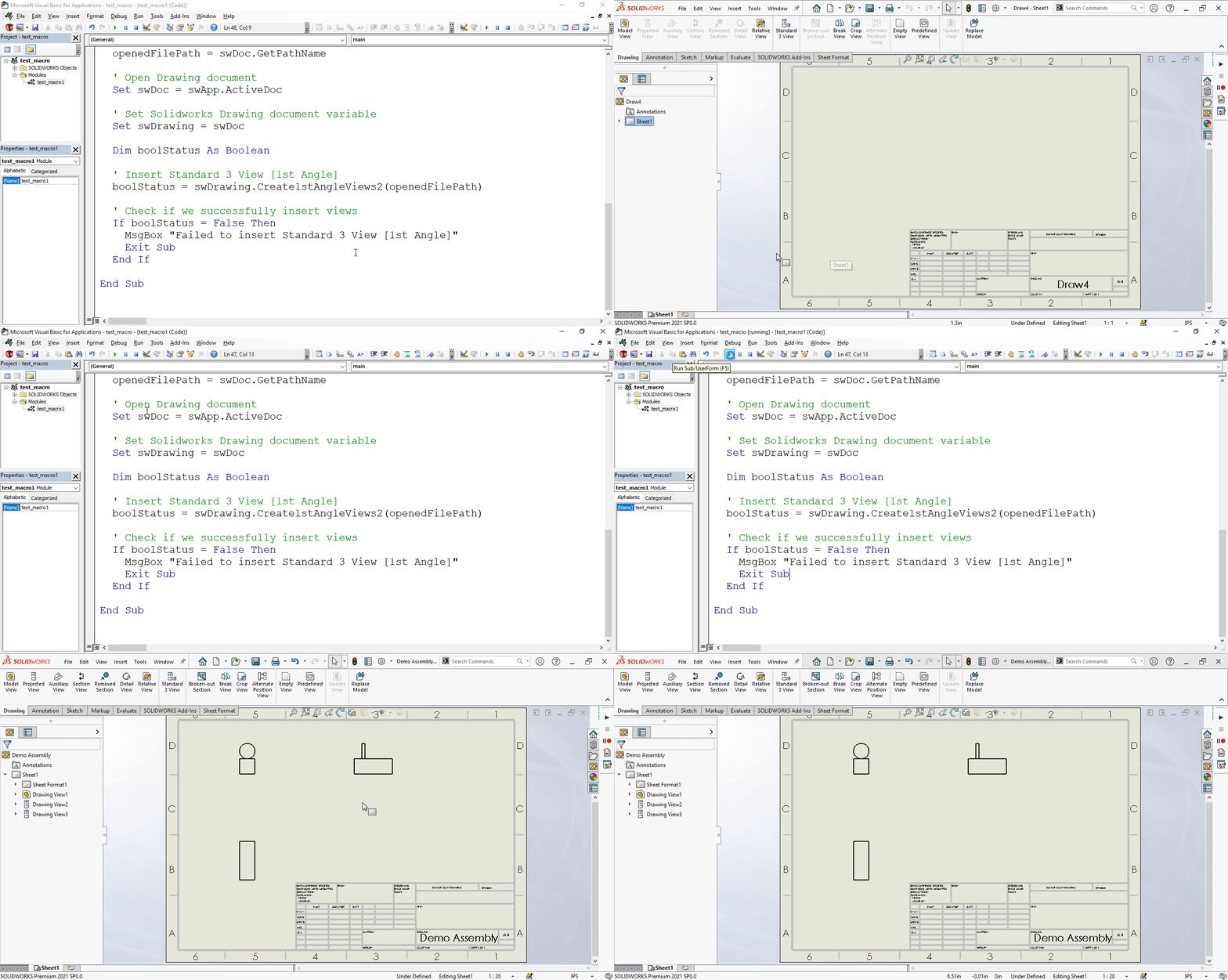
We Create Standard 3 View [1st Angle] in simple manners.
There are no extra steps required.
To get the correct result, please follow the steps correctly.
Macro Video
Below 🎬 video shows how to Create Standard 3 View [1st Angle] from SOLIDWORKS VBA Macros.
How to Create Standard 3 View [1st Angle] in Drawing
Please note that there are no explanations in the video.
Explanation of each step and why we write code this way is provided in this post.
VBA Macro
Below is the VBA macro for Create Standard 3 View [1st Angle].
Option Explicit

' Creating variable for Solidworks application
Dim swApp As SldWorks.SldWorks

' Creating variable for Solidworks document
Dim swDoc As SldWorks.ModelDoc2

' Creating variable for Solidworks Drawing
Dim swDrawing As SldWorks.DrawingDoc

' Program to Insert Standard 3 View [1st Angle]
Sub main()

  ' Setting Solidworks variable to Solidworks application
  Set swApp = Application.SldWorks

  ' Get Opened "Demo Assembly" document
  Set swDoc = swApp.GetOpenDocument("Demo Assembly")

  ' Check if Solidworks document is opened or not
  If swDoc Is Nothing Then
    MsgBox "Solidworks document is not opened."
    Exit Sub
  End If

  ' Variable for opened File's full Path
  Dim openedFilePath As String

  ' Get opened File's full Path
  openedFilePath = swDoc.GetPathName

  ' Open Drawing document
  Set swDoc = swApp.ActiveDoc

  ' Set Solidworks Drawing document variable
  Set swDrawing = swDoc

  ' Boolean variable
  Dim boolStatus As Boolean

  ' Insert Standard 3 View [1st Angle]
  boolStatus = swDrawing.Create1stAngleViews2(openedFilePath)

  ' Check if we successfully insert views
  If boolStatus = False Then
    MsgBox "Failed to insert Standard 3 View [1st Angle]"
    Exit Sub
  End If

End Sub
Prerequisite
There are some prerequisites for this article.
- Knowledge of VBA programming language is ❗required.
- We create drawing from an already opened Assembly document.
- We will use name of Assembly document name hardcoded.
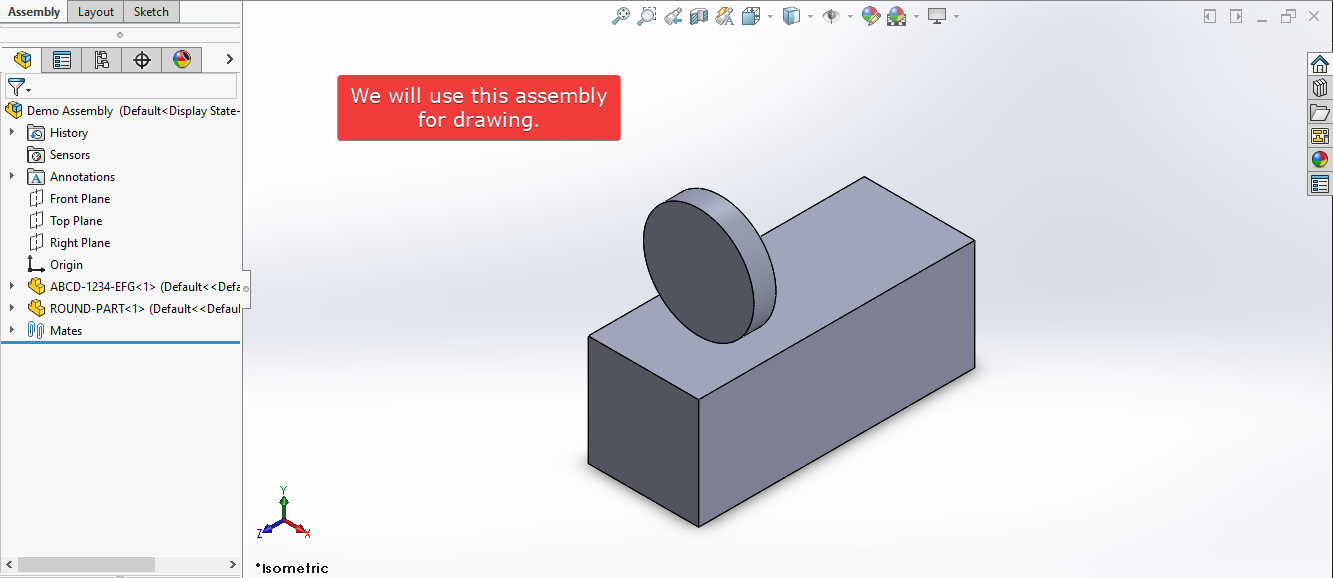
We will apply checks in this article, so the code we write, should be error free mostly.
Steps To Follow
This VBA macro can be divided into following sections:
- Create Global Variables
- Get Assembly Full Path
- Insert Standard Views
Every section with each line is explained below.
I also give some links (see icon 🚀) so that you can go through them if there are anything I explained in previous articles.
Create Global Variables
In this section, we create global variables.
Option Explicit
- Purpose: Above line forces us to define every variable we are going to use.
- Reference: 🚀 SOLIDWORKS Macros - Open new Part document
' Variable for Solidworks application
Dim swApp As SldWorks.SldWorks
- Purpose: In above line, we create a variable for Solidworks application.
- Variable Name:
swApp - Type:
SldWorks.SldWorks - Reference: Please visit 🚀 online SOLIDWORKS API Help .
' Variable for Solidworks document
Dim swDoc As SldWorks.ModelDoc2
- Purpose: In above line, we create a variable for Solidworks document.
- Variable Name:
swDoc - Type:
SldWorks.ModelDoc2 - Reference: Please visit 🚀 online SOLIDWORKS API Help .
' Creating variable for Solidworks Drawing
Dim swDrawing As SldWorks.DrawingDoc
- Purpose: In above line, we create a variable for Solidworks Drawing.
- Variable Name:
swDrawing - Type:
SldWorks.DrawingDoc - Reference: Please visit 🚀 online SOLIDWORKS API Help .
These all are our global variables.
They are SOLIDWORKS API Objects.
' Program to Insert Standard 3 View [1st Angle]
Sub main()

End Sub
- In above line, we create Program to Insert Standard 3 View [1st Angle].
- This is a
Subprocedure which has name ofmain. - This procedure hold all the statements (instructions) we give to computer.
- Reference: Detailed information 🚀 VBA Sub and Function Procedures article of this website.
Get Assembly Full Path
In this section, we Get Assembly Full Path.
' Set Solidworks Application variable to current application
Set swApp = Application.SldWorks
- In above line, we set value of
swAppvariable. - This value is currently opened Solidworks application.
' Get Opened "Demo Assembly" document
Set swDoc = swApp.GetOpenDocument("Demo Assembly")
- In above line, we set value of
swDocvariable. - This value is currently Opened “Demo Assembly” document.
- We use
GetOpenDocument()method fromswAppvariable. - This
GetOpenDocument()method takes one parameter.- DocName - Name of the document.
- We pass Opened assembly name i.e. “Demo Assembly” as parameter.
' Check if Solidworks document is opened or not
If swDoc Is Nothing Then
  MsgBox ("Solidworks document is not opened.")
  Exit Sub
End If
- In above code block, we check if we successfully set the value of
swDocvariable. - We use 🚀 IF statement for checking.
- Condition:
swDoc Is Nothing - When this condition is
True,- We show and 🚀 message window to user.
- Message: SOLIDWORKS document is not opened.
- Then we stop our macro here.
' Variable for opened File's full Path
Dim openedFilePath As String
- In above line, we create a variable for opened File’s full Path.
- Variable Name:
openedFilePath - Type:
String
' Get opened File's full Path
openedFilePath = swDoc.GetPathName
- In above line, we set value of
openedFilePathvariable. - This value opened File’s full Path.
- We set the value by
GetPathName()method ofswDocvariable.
Insert Standard Views
In this section, we Insert Standard Views action.
' Open Drawing document
Set swDoc = swApp.ActiveDoc
- In above line, we set value of
swDocvariable. - This value is currently opened part document.
' Set Solidworks Drawing document
Set swDrawing = swDoc
- In above line, we set value of
swDrawingvariable. - This value is
swDocvariable.
' Boolean Variable
Dim boolStatus As Boolean
- Purpose: In above line, we create a variable for Boolean selection.
- Variable Name:
boolStatus - Type:
Boolean
' Insert Standard 3 View [1st Angle]
boolStatus = swDrawing.Create1stAngleViews2(openedFilePath)
- In above code, we Insert Standard 3 View into Drawing.
- For this, we use
Create1stAngleViews2method. - This
Create1stAngleViews2method is part ofswDrawingvariable. - This method takes 1 parameter.
- ModelName: Name of the document from which to create views.
-
Return Value : This
Create1stAngleViews2method return 🚀Trueif successful,Falseif not. - In our code, I have used following values:
| Parameter Name | Value Used |
|---|---|
| ModelName |
openedFilePath
|
- Reference: For more details please visit 🚀 online SOLIDWORKS API Help .
' Check if we successfully insert views
If boolStatus = False Then
  MsgBox "Failed to insert Standard 3 View [1st Angle]"
  Exit Sub
End If
- In above code block, we check if we successfully insert views or not.
- We use 🚀 IF statement for checking.
- Condition:
boolStatus = False - When this condition is
True,- We show and 🚀 message window to user.
- Message: *Failed to insert Standard 3 View [1st Angle].
- Then we stop our macro here.
Now we run the macro and after running macro we show selected component as shown in below image.
This is it !!!
I hope my efforts will helpful to someone! 😊
If you found anything to add or update, please let me know on my e-mail 📧.
Hope this post helps you to Create Standard 3 View [1st Angle] with SOLIDWORKS VBA Macros.
For more such tutorials on SOLIDWORKS VBA Macro, do come to this website after sometime.
If you like the post then please share it with your friends also. 🙏🏻
Do let me know by you like this post or not!
Till then, Happy learning!!!