
Solidworks VBA Macro - Insert Detail View
In this article, we understand “how to” Insert Detail View in Drawing document from VBA macro.
We will insert Detail View.
This is most updated method of Insert Detail View in an drawing document.
Results We Can Get
Below image shows the result we get.
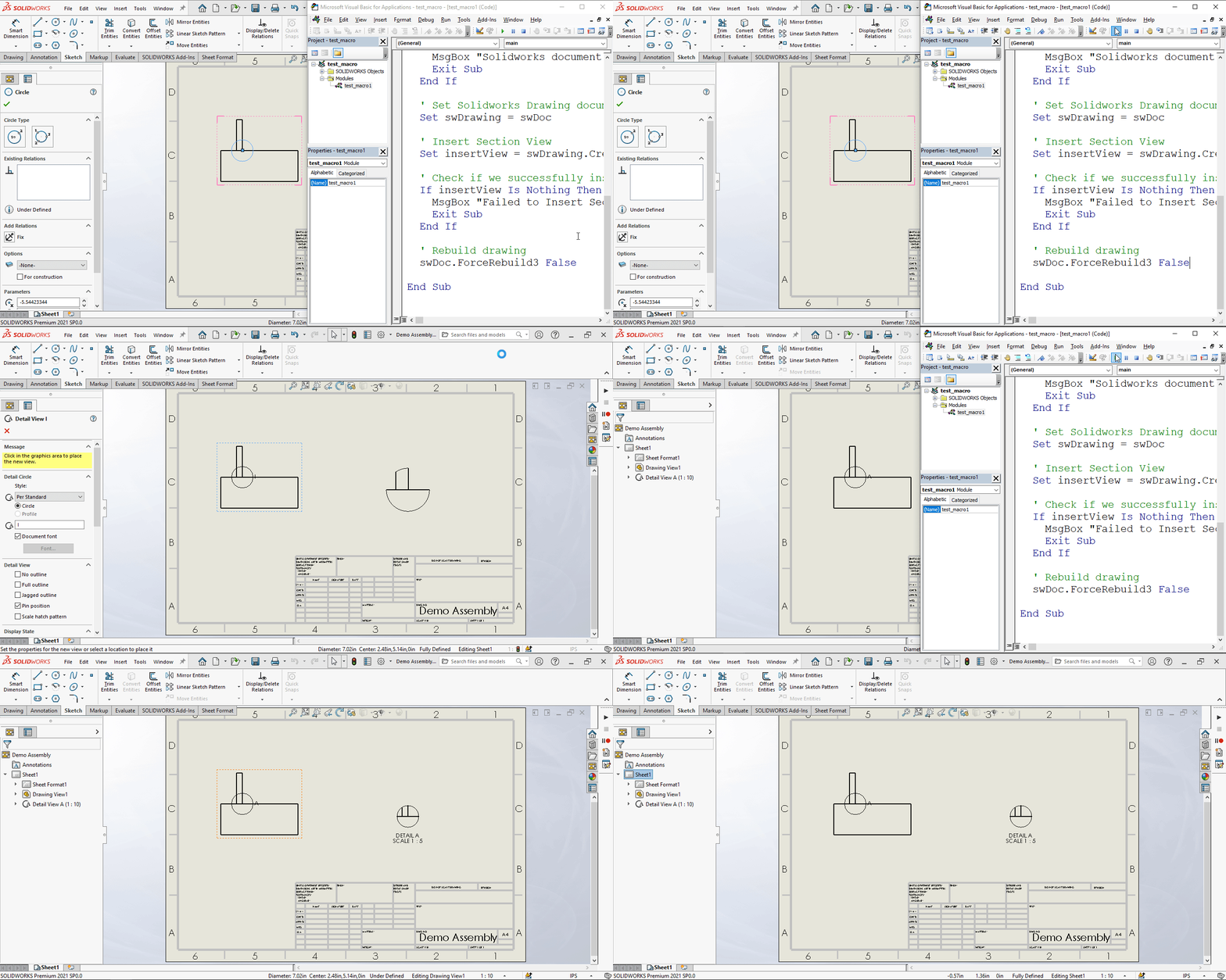
We Insert Detail View in simple manners.
There are no extra steps required.
To get the correct result, please follow the steps correctly.
Macro Video
Below 🎬 video shows how to Insert Detail View from SOLIDWORKS VBA Macros.
How to Insert Detail View in Drawing
Please note that there are no explanations in the video.
Explanation of each step and why we write code this way is provided in this post.
VBA Macro
Below is the VBA macro for Insert Detail View.
Option Explicit

' Creating variable for Solidworks application
Dim swApp As SldWorks.SldWorks

' Creating variable for Solidworks document
Dim swDoc As SldWorks.ModelDoc2

' Creating variable for Solidworks Drawing
Dim swDrawing As SldWorks.DrawingDoc

' Creating variable for Solidworks View
Dim insertView As SldWorks.View

' Program to Insert Detail View
Sub main()

  ' Setting Solidworks variable to Solidworks application
  Set swApp = Application.SldWorks

  ' Set Solidworks document variable to currently opened document
  Set swDoc = swApp.ActiveDoc

  ' Check if Solidworks document is opened or not
  If swDoc Is Nothing Then
    MsgBox "Solidworks document is not opened."
    Exit Sub
  End If

  ' Set Solidworks Drawing document variable
  Set swDrawing = swDoc

  ' Insert Detail View
  Set insertView = swDrawing.CreateDetailViewAt4(0.2, 0.12, 0, swDetViewSTANDARD, 1, 10, "A", swDetCircleCIRCLE, True, False, False, 5)

  ' Check if we successfully insert Detail view
  If insertView Is Nothing Then
    MsgBox "Failed to Insert Detail View."
    Exit Sub
  End If

  ' Rebuild drawing
  swDoc.ForceRebuild3 False

End Sub
Prerequisite
There are some prerequisites for this article.
- Knowledge of VBA programming language is ❗required.
- We create Detail view from an existing (Base) view.
- We already select a Circle in this existing (Base) view.
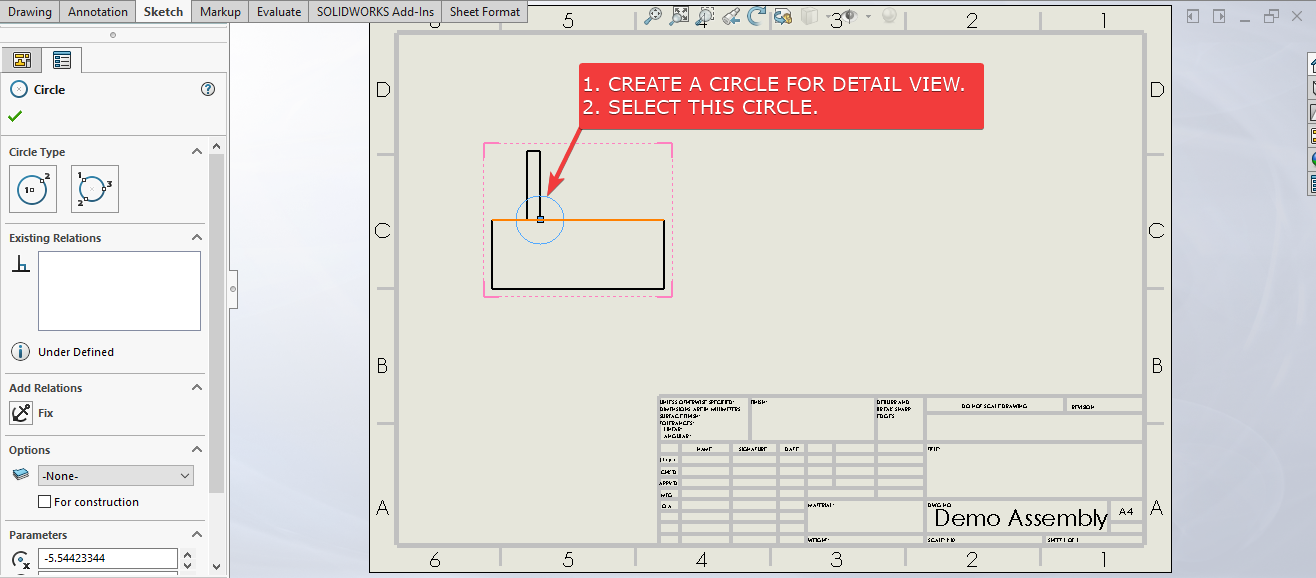
We will apply checks in this article, so the code we write, should be error free mostly.
Steps To Follow
This VBA macro can be divided into following sections:
- Create Global Variables
- Initialize Variables
- Insert Detail Views
Every section with each line is explained below.
I also give some links (see icon 🚀) so that you can go through them if there are anything I explained in previous articles.
Create Global Variables
In this section, we create global variables.
Option Explicit
- Purpose: Above line forces us to define every variable we are going to use.
- Reference: 🚀 SOLIDWORKS Macros - Open new Part document
' Variable for Solidworks application
Dim swApp As SldWorks.SldWorks
- Purpose: In above line, we create a variable for Solidworks application.
- Variable Name:
swApp - Type:
SldWorks.SldWorks - Reference: Please visit 🚀 online SOLIDWORKS API Help .
' Variable for Solidworks document
Dim swDoc As SldWorks.ModelDoc2
- Purpose: In above line, we create a variable for Solidworks document.
- Variable Name:
swDoc - Type:
SldWorks.ModelDoc2 - Reference: Please visit 🚀 online SOLIDWORKS API Help .
' Creating variable for Solidworks Drawing
Dim swDrawing As SldWorks.DrawingDoc
- Purpose: In above line, we create a variable for Solidworks Drawing.
- Variable Name:
swDrawing - Type:
SldWorks.DrawingDoc - Reference: Please visit 🚀 online SOLIDWORKS API Help .
' Creating variable for Solidworks View
Dim insertView As SldWorks.View
- Purpose: In above line, we create a variable for Solidworks View.
- Variable Name:
insertView - Type:
SldWorks.View - Reference: Please visit 🚀 online SOLIDWORKS API Help .
These all are our global variables.
They are SOLIDWORKS API Objects.
' Program to Insert Detail View
Sub main()

End Sub
- In above line, we create Program to Insert Detail View.
- This is a
Subprocedure which has name ofmain. - This procedure hold all the statements (instructions) we give to computer.
- Reference: Detailed information 🚀 VBA Sub and Function Procedures article of this website.
Initialize Variables
In this section, we initialize Variables.
' Set Solidworks Application variable to current application
Set swApp = Application.SldWorks
- In above line, we set value of
swAppvariable. - This value is currently opened Solidworks application.
' Set Solidworks document variable to currently opened document
Set swDoc = swApp.ActiveDoc
- In above line, we set value of
swDocvariable. - This value is currently opened part document.
' Check if Solidworks document is opened or not
If swDoc Is Nothing Then
  MsgBox ("Solidworks document is not opened.")
  Exit Sub
End If
- In above code block, we check if we successfully set the value of
swDocvariable. - We use 🚀 IF statement for checking.
- Condition:
swDoc Is Nothing - When this condition is
True,- We show and 🚀 message window to user.
- Message: SOLIDWORKS document is not opened.
- Then we stop our macro here.
' Set Solidworks Drawing document
Set swDrawing = swDoc
- In above line, we set value of
swDrawingvariable. - This value is
swDocvariable.
Insert Detail Views
In this section, we Insert Detail Views.
' Insert Detail View
Set insertView = swDrawing.CreateDetailViewAt4(0.2, 0.12, 0, swDetViewSTANDARD, 1, 10, "A", swDetCircleCIRCLE, True, False, False, 5)
- In above code, we Insert Detail View into Drawing.
- For this, we use
CreateDetailViewAt4method. - This
CreateDetailViewAt4method is part ofswDrawingvariable. - This method takes following parameters.
- X: X position for the Detail view.
- Y: Y position for the Detail view.
- Z: Z position for the Detail view.
- Style: Style for the detail view as defined in
swDetViewStyle_eas following.
| Parameter Name | Description |
|---|---|
| swDetViewBROKEN | 1 = Use broken detail view style. |
| swDetViewCONNECTED | 4 = Use connected detail view style. |
| swDetViewLEADER | 2 = Use leader detail view style. |
| swDetViewNOLEADER | 3 = Use no leader detail view style. |
| swDetViewSTANDARD | 0 = Use standard detail view style. |
- Scale1: Scale numerator.
- Scale2: Scale denominator.
- LabelIn: Detail view label.
- Showtype: Type of sketch for the detail view as defined in
swDetCircleShowType_eas following.
| Parameter Name | Description |
|---|---|
| swDetCircleCIRCLE | 1 = Use sketch circle to create detail view. |
| swDetCircleDONTSHOW | 2 = Do not show a sketch profile. |
| swDetCirclePROFILE | 0 = Use sketch profile to create detail view. |
- FullOutline: *
Trueto show a full outline,Falseto not; valid only ifNoOutlineisFalse.* - JaggedOutline: *
Trueto show a jagged outline,Falsedoes not; valid only ifNoOutlineisFalse.* - NoOutline: *
Trueto not show an outline,Falseto show an outline.* -
ShapeIntensity: Intensity of jagged outline; valid range is 1 (most) to 5 (least) and only valid if
JaggedOutlineisTrueandNoOutlineisFalse. -
Return Value : This
CreateDetailViewAt4method return 🚀 View data object. - In our code, I have used following values:
| Parameter Name | Value Used |
|---|---|
| X |
0.2
|
| Y |
0.12
|
| Z |
0
|
| Style |
swDetViewSTANDARD
|
| Scale1 |
1
|
| Scale2 |
10
|
| LabelIn |
A
|
| Showtype |
swDetCircleCIRCLE
|
| FullOutline |
True
|
| JaggedOutline |
False
|
| NoOutline |
False
|
| ShapeIntensity |
5
|
- Reference: For more details please visit 🚀 online SOLIDWORKS API Help .
' Check if we successfully insert view
If insertView Is Nothing Then
  MsgBox "Failed to Insert Detail View"
  Exit Sub
End If
- In above code block, we check if we successfully insert views or not.
- We use 🚀 IF statement for checking.
- Condition:
insertView Is Nothing - When this condition is
True,- We show and 🚀 message window to user.
- Message: *Failed to Insert Detail View.
- Then we stop our macro here.
' Rebuild drawing
swDoc.ForceRebuild3 True
- In above line, we Rebuild drawing.
- For this we use
ForceRebuild3method which is part of SOLIDWORKS Document variable i.eswDocvariable.
Now we run the macro and after running macro we show selected component as shown in below image.
This is it !!!
I hope my efforts will helpful to someone! 😊
If you found anything to add or update, please let me know on my e-mail 📧.
Hope this post helps you to Insert Detail View with SOLIDWORKS VBA Macros.
For more such tutorials on SOLIDWORKS VBA Macro, do come to this website after sometime.
If you like the post then please share it with your friends also. 🙏🏻
Do let me know by you like this post or not!
Till then, Happy learning!!!