
SOLIDWORKS C# API - Create Line
I want to:
-
Create Line into Solidworks Part Document using Solidworks C# API
-
We will continue from previous article 🚀 Create Line UI - Part 2.
Demo Video
Please see below video on how to “Create Line into Solidworks Part Document” using Solidworks C# API from WPF Application.
Create Line into Solidworks Part Document
Please note that there are no explanations in the video.
Explanation of each step and why we write the code this way is provided in this post.
Update Method - ExecuteCreateLineCommand
In this section, we update ExecuteCreateLineCommand method.
- First we replace below 👇🏻 code from ExecuteCreateLineCommand method.
await Task.Run(() =>
{
    // Sleeping for 2 seconds
    Thread.Sleep(2000);
});
- Then we use below code.
bool result = await Task.Run(CreateLineMethod);
In above code, we are doing following.
- Create a
booltype variable. - Name of this variable =
result - Value of this
resultvariable is set byCreateLineMethodmethod. - In above code, we use
awaitkeyword. This will wait for completion ofCreateLineMethodmethod.
Since CreateLineMethod method did not exist hence we need to create a new method as shown below 👇🏻.
bool CreateLineMethod()
{
    return true;
}
- In above code
CreateLineMethod()method return true as default value. - In
ExecuteCreateLineCommand()method, we will add following code.
if (result)
    this.eventAggregator
        .GetEvent<InformationMessagesService>()
        .Publish(messageToShow);
else
    this.eventAggregator
        .GetEvent<ErrorMessagesService>()
        .Publish(messageToShow);
- In above code, we are checking value of
resultvariable. - If value of
resultvariable =true - Then we will show an Information message.
- For showing message we use
this.eventAggregatorfield. - This field get
InformationMessagesServiceclass and publish a message. - If value of
resultvariable =false - Then we will show an Error message.
- For showing message we use
this.eventAggregatorfield. - This field get
ErrorMessagesServiceclass and publish a message. - In both cases message depend upon
messageToShowvariable. - Value of this
messageToShowvariable comes fromCreateLineMethod()method.
Update Method - CreateLineMethod
- Now we need to update
CreateLineMethod()method for Creating Line.
swApp = new SldWorks.SldWorks();
- In above code we are setting value of
swAppvariable to newSldWorks.SldWorks()type. - Reference: Please visit 🚀 online SOLIDWORKS API Help.
if (swApp == null)
{
    messageToShow = "Failed to find SolidWorks application.";
    return false;
}
- In above code, we are checking value of
swAppvariable. - We are checking if
swAppvariable isnullor not? - If value is
null, then we will execute code inside thisifcondition.
messageToShow = "Failed to find SolidWorks application.";
return false;
- Above code execute when value of
swAppvariable isnull. - In above code, we are setting value of
messageToShowvariable to"Failed to find Solidworks application.". - This variable will be use to show messages to user.
- After this we return
falseand exit theCreateLineMethod()method.
swApp.Visible = true;
In above line we are doing following:
- Purpose: This line makes sure the SOLIDWORKS is open and visible.
swApp: Refers to variable/object of an instance of SOLIDWORKS application.Visible: A property of theswAppobject that controls whether the SOLIDWORKS’s user interface (UI) is visible or hidden.true: A Boolean value indicating that the application should be visible. Setting it totruemeans the application window will be displayed.
SOLIDWORKS C# API - Delete Selected Sketch
I want to:
-
Delete Selected Sketch into Solidworks Part Document using Solidworks C# API
-
We will continue from previous article 🚀 Delete Selected Sketch UI.
Demo Video
Please see below video on how to “Delete Selected Sketch into Solidworks Part Document” using Solidworks C# API from WPF Application.
(Add your video caption here)
Please note that there are no explanations in the video.
Explanation of each step and why we write the code this way is provided in this post.
Update Method - ExecuteDeleteCommand
In this section, we update ExecuteDeleteCommand method.
- First we replace below 👇🏻 code from ExecuteDeleteCommand method.
await Task.Run(() =>
{
    // Sleeping for 2 seconds
    Thread.Sleep(2000);
});
- Then we use below code.
bool result = await Task.Run(DeleteSketch);
In above code, we are doing following.
- Create a
booltype variable. - Name of this variable =
result - Value of this
resultvariable is set byDeleteSketchmethod. - In above code, we use
awaitkeyword. This will wait for completion ofDeleteSketchmethod.
Since DeleteSketch method did not exist hence we need to create a new method as shown below 👇🏻.
bool DeleteSketch()
{
    return true;
}
- In above code
DeleteSketch()method return true as default value. - In
ExecuteDeleteCommand()method, we will add following code.
if (result)
    this.eventAggregator
        .GetEvent<InformationMessagesService>()
        .Publish(messageToShow);
else
    this.eventAggregator
        .GetEvent<ErrorMessagesService>()
        .Publish(messageToShow);
- In above code, we are checking value of
resultvariable. - If value of
resultvariable =true - Then we will show an Information message.
- For showing message we use
this.eventAggregatorfield. - This field get
InformationMessagesServiceclass and publish a message. - If value of
resultvariable =false - Then we will show an Error message.
- For showing message we use
this.eventAggregatorfield. - This field get
ErrorMessagesServiceclass and publish a message. - In both cases message depend upon
messageToShowvariable. - Value of this
messageToShowvariable comes fromDeleteSketch()method.
Update Method - DeleteSketch
- Now we need to update
DeleteSketch()method for deleting selected Sketch.
swApp = new SldWorks.SldWorks();
- In above code we are setting value of
swAppvariable to newSldWorks.SldWorks()type. - Reference: Please visit 🚀 online SOLIDWORKS API Help .
if (swApp == null)
{
    messageToShow = "Failed to find SolidWorks application.";
    return false;
}
- In above code, we are checking value of
swAppvariable. - We are checking if
swAppvariable isnullor not? - If value is
null, then we will execute code inside thisifcondition.
messageToShow = "Failed to find SolidWorks application.";
return false;
- Above code execute when value of
swAppvariable isnull. - In above code, we are setting value of
messageToShowvariable to"Failed to find Solidworks application.". - This variable will be use to show messages to user.
- After this we return
falseand exit theChangeSketchName()method.
swDoc = swApp.ActiveDoc;
- In above code we are setting value of
swDocvariable to newswApp.ActiveDocproperty. - This
ActiveDocproperty is part ofswAppvariable. - If there is NO document active then this
ActiveDocproperty returnnull. - Reference: Please visit 🚀 online SOLIDWORKS API Help .
if (swDoc == null)
{
    messageToShow = "Failed to get SolidWorks document.";
    return false;
}
- In above code, we are checking value of
swDocvariable. - We are checking if
swDocvariable isnullor not? - If value is
null, then we will execute code inside thisifcondition.
messageToShow = "Failed to get SolidWorks document.";
return false;
- Above code execute when value of
swDocvariable isnull. - In above code, we are setting value of
messageToShowvariable to"Failed to get Solidworks document.". - This variable will be use to show messages to user.
- After this we return
falseand exit theChangeSketchName()method.
bool result = swDoc.Extension.DeleteSelection2(
    (int)swDeleteSelectionOptions_e.swDelete_Children
);
- In above code, we delete selected Sketch.
- For changing the name, we use
DeleteSelection2()method. DeleteSelection2()method is part ofExtensionproperty.Extensionproperty is part ofswDocvariable.DeleteSelection2()method takes following parameters.- DeleteOptions: Options as defined in
swDeleteSelectionOptions_e.
- DeleteOptions: Options as defined in
| Member | Description |
|---|---|
swDelete_Absorbed
|
2
|
swDelete_Advanced
|
4
|
swDelete_Children
|
1
|
-
Return Value :
trueif selected item is deleted,falseif not. -
In our code, I have used following values:
| Parameter Name | Value Used |
|---|---|
DeleteOptions
|
swDeleteSelectionOptions_e.swDelete_Children
|
- We store return value of
DeleteSelection2()method inresultvariable. resultvariable Type :bool
if (result == false)
{
    messageToShow = "Failed to delete selected sketch.";
    return false;
}
- We check value of
resultvariable and successfully delete Selected Sketch or not. - In above code, we are checking value of
resultvariable and successfully deleted Sketch or not. - We are checking if
resultvariable istrueorfalse? - If value is
false, then we will execute code inside thisifcondition.
messageToShow = "Failed to delete selected sketch.";
return false;
- Above code execute when value of
resultvariable isfalse. - In above code, we are setting value of
messageToShowvariable to"Failed to delete selected sketch.". - This variable will be use to show messages to user.
- After this we return
falseand exit theDeleteSketch()method.
messageToShow = "Selected Sketch is deleted.";
return true;
- Above code execute when value of
resultvariable istrueand did not execute code insideifcondition. - In above code, we are setting value of
messageToShowvariable to"Selected Sketch is deleted.". - This variable will be use to show messages to user.
- After this we return
trueand exit theDeleteSketch()method.
FINAL RESULT
For Demo, we already had a sketch we want to delete with our program.
Please see below 👇🏻 image for reference.
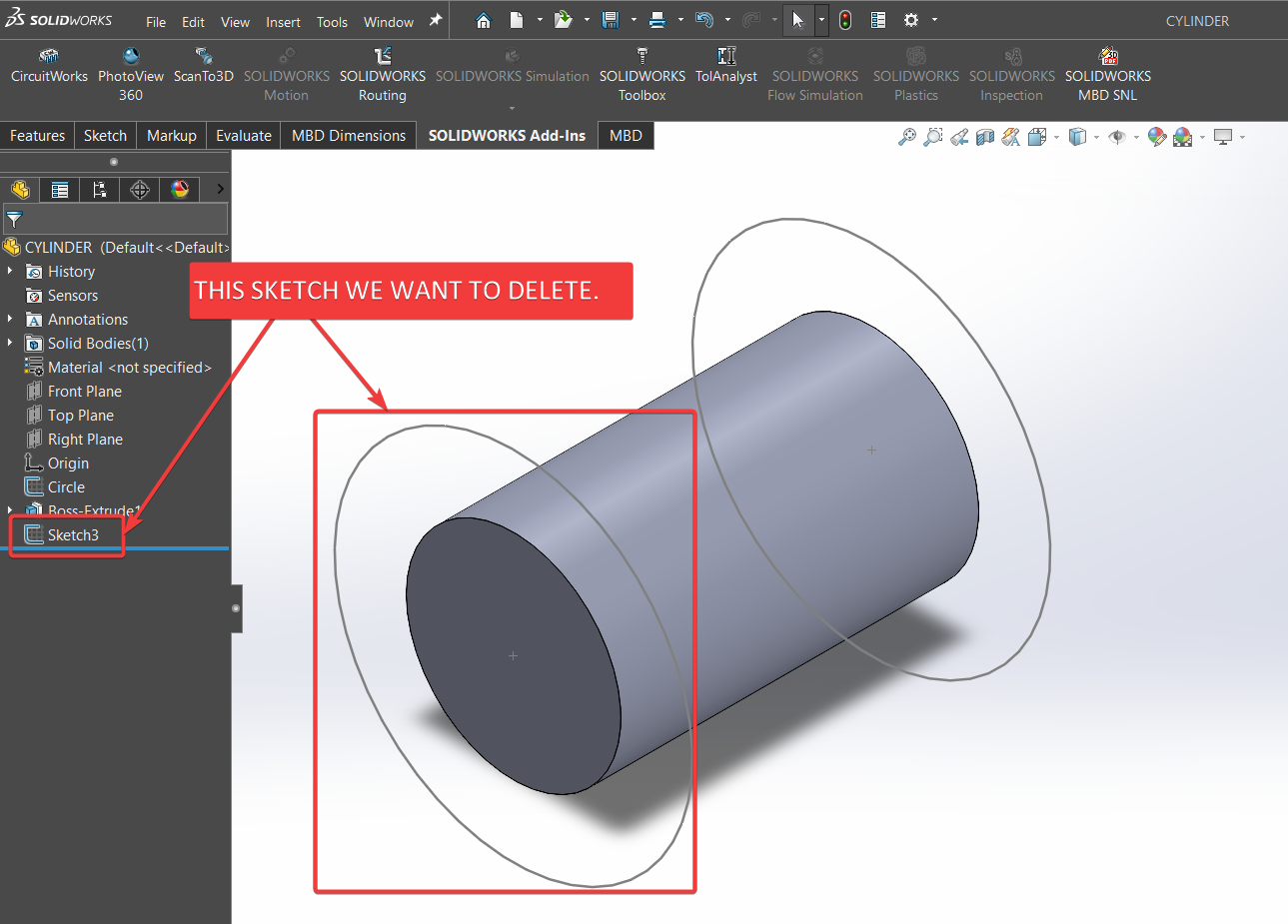
Now, we have done everything needed to Delete Solidworks Sketch into Solidworks Document through our application.
Please see below image for final result of our work.
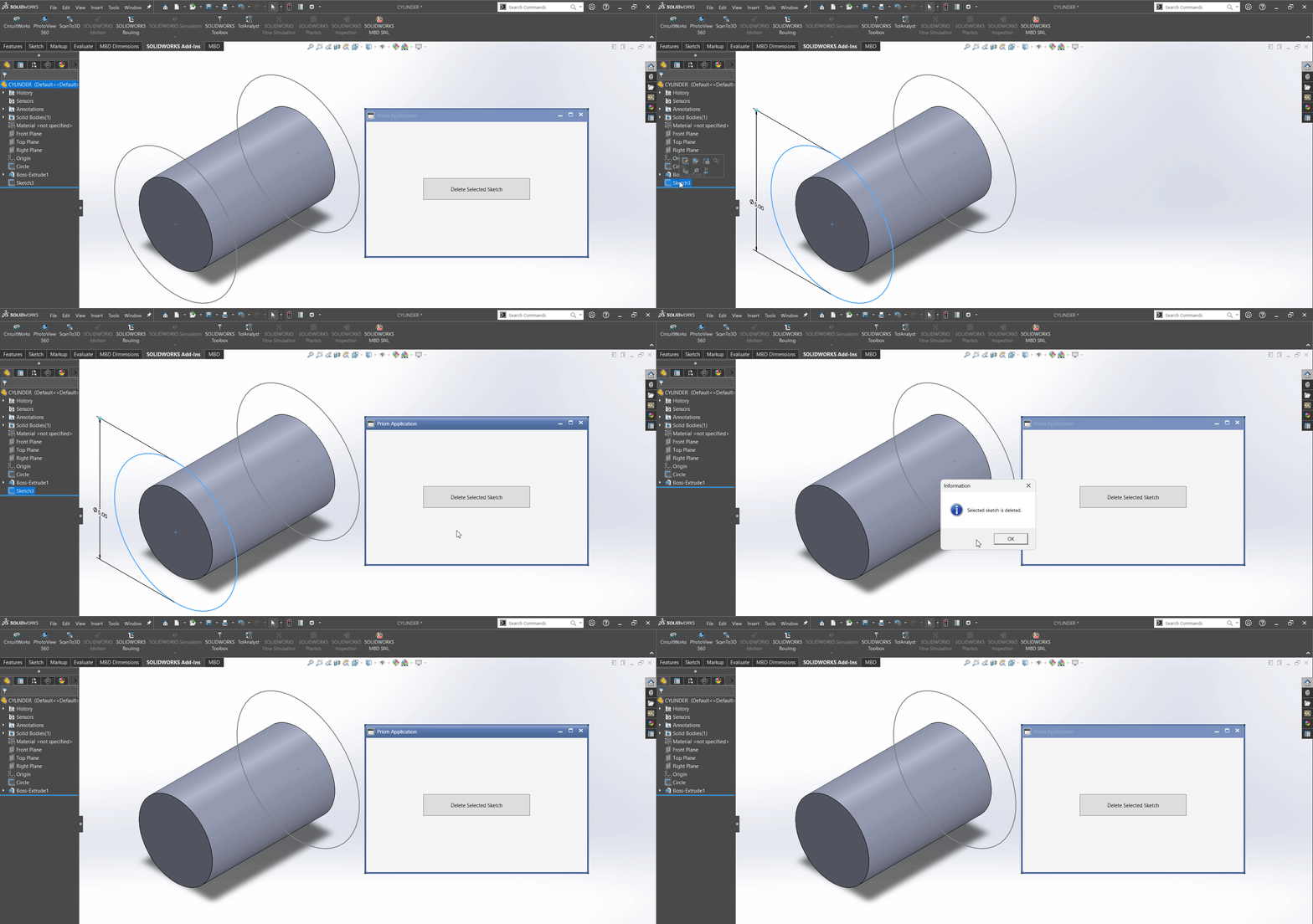
This is it !!!
I hope my efforts will helpful to someone!
If you found anything to add or update, please let me know on my e-mail.
Hope this post helps you to Delete Selected Solidworks Sketch from WPF PRISM Application.
If you like the post then please share it with your friends also.
Do let me know by you like this post or not!
Till then, Happy learning!!!
- In above code we are creating a new variable.
- Name of variable:
defaultTemplate. - Type of variable:
string
- Name of variable:
- Sets the value of
defaultTemplatevariable. swApp: Refers to variable/object of an instance of SOLIDWORKS application.GetUserPreferenceStringValue(): A method that retrieves Gets system default user preference values.- This method
GetUserPreferenceStringValue()takes following parameters.- UserPreference: User preference as defined in
swUserPreferenceStringValue_e - Click here for more details of 🚀 swUserPreferenceStringValue_e
- UserPreference: User preference as defined in
- In our code, I have used following values:
| Parameter Name | Value Used |
|---|---|
| UserPreference |
(int)swUserPreferenceStringValue_e.swDefaultTemplatePart
|
if (string.IsNullOrEmpty(defaultTemplate))
{
    messageToShow = "Default part template is empty.";
    return false;
}
- In above code, we are checking value of
defaultTemplatevariable. - We are checking if
defaultTemplatevariable isnullor not? - If value is
null, then we will execute code inside thisifcondition.
messageToShow = "Default part template is empty.";
return false;
- Above code execute when value of
defaultTemplatevariable isnull. - In above code, we are setting value of
messageToShowvariable to"Default part template is empty.". - This variable will be use to show messages to user.
- After this we return
falseand exit theCreateLineMethod()method.
ModelDoc2 swDoc = swApp.NewDocument(defaultTemplate, 0, 0, 0);
- In above code we are creating a new variable.
- Name of variable:
swDoc. - Type of variable:
ModelDoc2
- Name of variable:
- Sets the value of
swDocvariable. swApp: Refers to variable/object of an instance of SOLIDWORKS application.NewDocument(): A method that creates a new document based on the specified template.- This method
NewDocument()takes following parameters.- TemplateName: Fully qualified path and name of the template to use for creating the new document
- PaperSize: Size of paper as defined in
swDwgPaperSizes_e
| Member | Description |
|---|---|
| swDwgPaperA0size |
11
|
| swDwgPaperA1size |
10
|
| swDwgPaperA2size |
9
|
| swDwgPaperA3size |
8
|
| swDwgPaperA4size |
6
|
| swDwgPaperA4sizeVertical |
7
|
| swDwgPaperAsize |
0
|
| swDwgPaperAsizeVertical |
1
|
| swDwgPaperBsize |
2
|
| swDwgPaperCsize |
3
|
| swDwgPaperDsize |
4
|
| swDwgPaperEsize |
5
|
| swDwgPapersUserDefined |
12
|
- Width: Width of paper; used only when PaperSize is
swDwgPapersUserDefined - Height: Height of paper; used only when PaperSize is
swDwgPapersUserDefined -
Click here for more details of 🚀 NewDocument Method
- In our code, I have used following values:
| Parameter Name | Value Used |
|---|---|
| TemplateName |
defaultTemplate
|
| PaperSize |
0
|
| Width |
0
|
| Height |
0
|
if (swDoc == null)
{
    messageToShow = "Failed to get Solidworks document.";
    return false;
}
- In above code, we are checking value of
swDocvariable. - We are checking if
swDocvariable isnullor not? - If value is
null, then we will execute code inside thisifcondition.
messageToShow = "Failed to get Solidworks document.";
return false;
- Above code execute when value of
swDocvariable isnull. - In above code, we are setting value of
messageToShowvariable to"Failed to get Solidworks document.". - This variable will be use to show messages to user.
- After this we return
falseand exit theCreateLineMethod()method.
bool boolStatus = swDoc.Extension.SelectByID2(
    "Right Plane",
    "PLANE",
    0, 0, 0,
    false,
    0,
    null,
    (int)swSelectOption_e.swSelectOptionDefault);
- In above code we are creating a new variable.
- Name of variable:
boolStatus. - Type of variable:
bool
- Name of variable:
- Sets the value of
boolStatusvariable. swDoc.Extension: Refers to object allows access to the model.SelectByID2(): A method that Selects the specified entity.- This method
SelectByID2()takes following parameters.- Name: Name of object to select or an empty string
- Type: Type of object (uppercase) as defined in
swSelectType_eor an empty string- Click here for more details of 🚀 swSelectType_e
- X: X selection location or 0
- Y: Y selection location or 0
- Z: Z selection location or 0
- Append: Please see below table for details:
| If | An, if entity is | Then |
|---|---|---|
| True | Not already selected | Entity is appended to the current selection list |
| Already selected | Entity is removed from the current selection list | |
| False | Not already selected | Current selection is cleared and then the entity is put on the list |
| Already selected | Current selection list remains the same |
- Mark: Value that you want to use as a mark; this value is used by other functions that require ordered selection.
- Callout: Pointer to the associated callout
- SelectOption: Selection option as defined in
swSelectOption_e
| Member | Description |
|---|---|
| swSelectOptionDefault |
0 or 0x0
|
| swSelectOptionExtensive |
1 or 0x1
|
-
Return Value :
trueif selected item is successfully selected,falseif not. -
In our code, I have used following values:
| Parameter Name | Value Used |
|---|---|
| Name |
Right Plane
|
| Type |
PLANE
|
| X |
0
|
| Y |
0
|
| Z |
0
|
| Append |
false
|
| Mark |
0
|
| Callout |
null
|
| SelectOption |
(int)swSelectOption_e.swSelectOptionDefault
|
if (boolStatus == false)
{
    messageToShow = "Failed to select Front Plane";
    swApp.CloseAllDocuments(true);
    swApp.ExitApp();
    return false;
}
- In above code, we are checking value of
boolStatusvariable. - We are checking if
boolStatusvariable isfalseor not? - If value is
false, then we will execute code inside thisifcondition.
messageToShow = "Failed to select Right Plane.";
swApp.CloseAllDocuments(true);
swApp.ExitApp();
return false;
- Above code execute when value of
boolStatusvariable isfalse. - In above code, we are setting value of
messageToShowvariable to"Failed to select Right Plane.". - This variable will be use to show messages to user.
- After this, we close all documents in Solidworks application.
CloseAllDocuments(): For closing all documents, we useCloseAllDocuments()method.CloseAllDocuments()method takes following parameters:IncludeUnsaved:true= Close all documents, including dirty documentsfalse= Close all documents, excluding dirty documents
- In our code, we use
trueas parameter.
- After closing all documents, we close Solidworks Application.
- For this we use
ExitApp()method.- This
ExitApp()method is part ofswAppobject. ExitApp()method did not take any parameter.
- This
- After this we return
falseand exit theCreateLineMethod()method.
swDoc.SketchManager.InsertSketch(false);
- Now after selecting plane, we insert sketch into selected plane.
- For inserting sketch, we use:
InsertSketch()method: To Inserts a new sketch in the current part or assembly document.- Parameters:
UpdateEditRebuild:trueto rebuild the part with any changes made to the sketch and exit sketch mode,falseto not
- Return Value:
None
- Reference: 🚀 InsertSketch method Solidworks API Help
UnitConversionHelper conversionHelper = container.Resolve<UnitConversionHelper>();
- In above line, we create a variable for
UnitConversionHelperclass.- Name of variable:
conversionHelper. - Type of variable:
UnitConversionHelper
- Name of variable:
- We set the value of
conversionHelpervariable with help of DI container. - We ask DI container to resolve the initializing of
conversionHelpervariable.
var units = swDoc.GetUnits();
- In above line, we create a variable for storing Solidworks document units.
- Name of variable:
conversionHelunitser. - Type of variable:
var- Type will resolve while application is running.
- This is called Runtime resolution.
- Name of variable:
- We set the value of
conversionHelunitservariable throughGetUnits()method. - This method is part of
swDocvariable. - Reference: 🚀 GetUnits method Solidworks API Help
conversionHelper.UnitConversion((swLengthUnit_e)units[0]);
- In above line, we are calling
UnitConversion()method. - This method is part of
conversionHelpervariable. - For more details on
UnitConversion()method, please visit 🚀 SOLIDWORKS C# API - Fix Unit Issue article from this website.
double x1, y1, z1, x2, y2, z2;
- In above line, we create some variables.
- Type of variables:
double - Name of variables:
x1, y1, z1, x2, y2, z2
- Type of variables:
(x1, y1, z1) = ApplyUnitConversion(StartPointViewModel, conversionHelper.LengthConversionFactor);
- In above code, we are setting values of
x1, y1, z1variables usingApplyUnitConversion()method. - We pass 2 parameters to
ApplyUnitConversion()method.PointViewModel- For which point we want to apply unit conversions.LengthConversionFactor- Factor we want to apply to values of passing point.
- I will explain more about
ApplyUnitConversion()method later.
(x2, y2, z2) = ApplyUnitConversion(EndPointViewModel, conversionHelper.LengthConversionFactor);
- Same as previous line of code.
sketchSegment = swDoc.SketchManager.CreateLine(x1, y1, z1, x2, y2, z2);
- In above line of code, we are creating Sketch line.
- For this we are using
CreateLine()method. - This
CreateLine()method, creates a sketch line in the currently active 2D or 3D sketch. - This
CreateLine()method is part ofSketchManagerproperty. - This
SketchManagerproperty is part ofswDocvariable. - This
CreateLine()method takes following parameters.- X1 - X coordinate of the line start point
- Y1 - Y coordinate of the line start point
- Z1 - Z coordinate of the line start point
- X2 - X coordinate of the line end point
- Y2 - Y coordinate of the line end point
- Z2 - Z coordinate of the line end point
-
Return Value :
SketchSegmentObject if line created successfully. - In our code, I have used following values:
| Parameter Name | Value Used |
|---|---|
| X1 |
x1
|
| Y1 |
y1
|
| Z1 |
z1
|
| X2 |
x2
|
| Y2 |
y2
|
| Z2 |
z2
|
if (sketchSegment == null)
{
    messageToShow = "Failed to Create Sketch line.";
    swApp.CloseAllDocuments(true);
    swApp.ExitApp();
    return false;
}
- In above code, we are checking value of
sketchSegmentvariable. - We are checking if
sketchSegmentvariable isnullor not? - If value is
null, then we will execute code inside thisifcondition.
messageToShow = "Failed to Create Sketch line.";
swApp.CloseAllDocuments(true);
swApp.ExitApp();
return false;
- Above code execute when value of
sketchSegmentvariable isnull. - In above code, we are setting value of
messageToShowvariable to"Failed to Create Sketch line.". - This variable will be use to show messages to user.
- After this, we close all documents in Solidworks application.
CloseAllDocuments(): For closing all documents, we useCloseAllDocuments()method.CloseAllDocuments()method takes following parameters:IncludeUnsaved:true= Close all documents, including dirty documentsfalse= Close all documents, excluding dirty documents
- In our code, we use
trueas parameter.
- After closing all documents, we close Solidworks Application.
- For this we use
ExitApp()method.- This
ExitApp()method is part ofswAppobject. ExitApp()method did not take any parameter.
- This
- After this we return
falseand exit theCreateLineMethod()method.
swDoc.ClearSelection2(true);
- In above line, we clear all selection in Solidwork Sketch.
- We clear selection by
ClearSelection2()method. - This method
ClearSelection2()takes following parameter:- All -
trueclears the entire existing selection list,falseclears only the items in the active selection list.
- All -
- We used
trueas parameter.
swDoc.ViewZoomtofit2();
- In above line, we zoom current view.
- We do this by
ViewZoomtofit2()method. - This
ViewZoomtofit2()method is part ofswDocvariable. - This
ViewZoomtofit2()method, did not take any parameter and did not return any object.
messageToShow = "Sketch line successfully created.";
return true;
- In above code, we are setting value of
messageToShowvariable to"Sketch line successfully created.". - Then we return
true; indicating we have completed ourCreateLineMethod()method successfully.
Add Method - ApplyUnitConversion
Now we add ApplyUnitConversion method.
public (double, double, double) ApplyUnitConversion(
    PointViewModel inputPoint,
    double lengthConversionFactor)
{
    double X, Y, Z;

    X = inputPoint.XPoint * lengthConversionFactor;
    Y = inputPoint.YPoint * lengthConversionFactor;
    Z = inputPoint.ZPoint * lengthConversionFactor;

    return (X, Y, Z);
}
- This method takes a
PointViewModelobject (inputPoint) and alengthConversionFactor, and it converts theinputPointcoordinates by multiplying each with the conversion factor. - Return Type: The method returns a tuple
(double, double, double)representing the converted X, Y, and Z coordinates. - Parameters:
inputPoint: An object of typePointViewModelthat has propertiesXPoint, YPoint, and ZPoint, representing the X, Y, and Z coordinates of a point.lengthConversionFactor: A double value used to convert the unit of measurement for each coordinate.
Final Result
Now, we have done everything needed to Create Line in Solidworks Sketch into Solidworks Document through our application.
Please see below image for final result of our work.
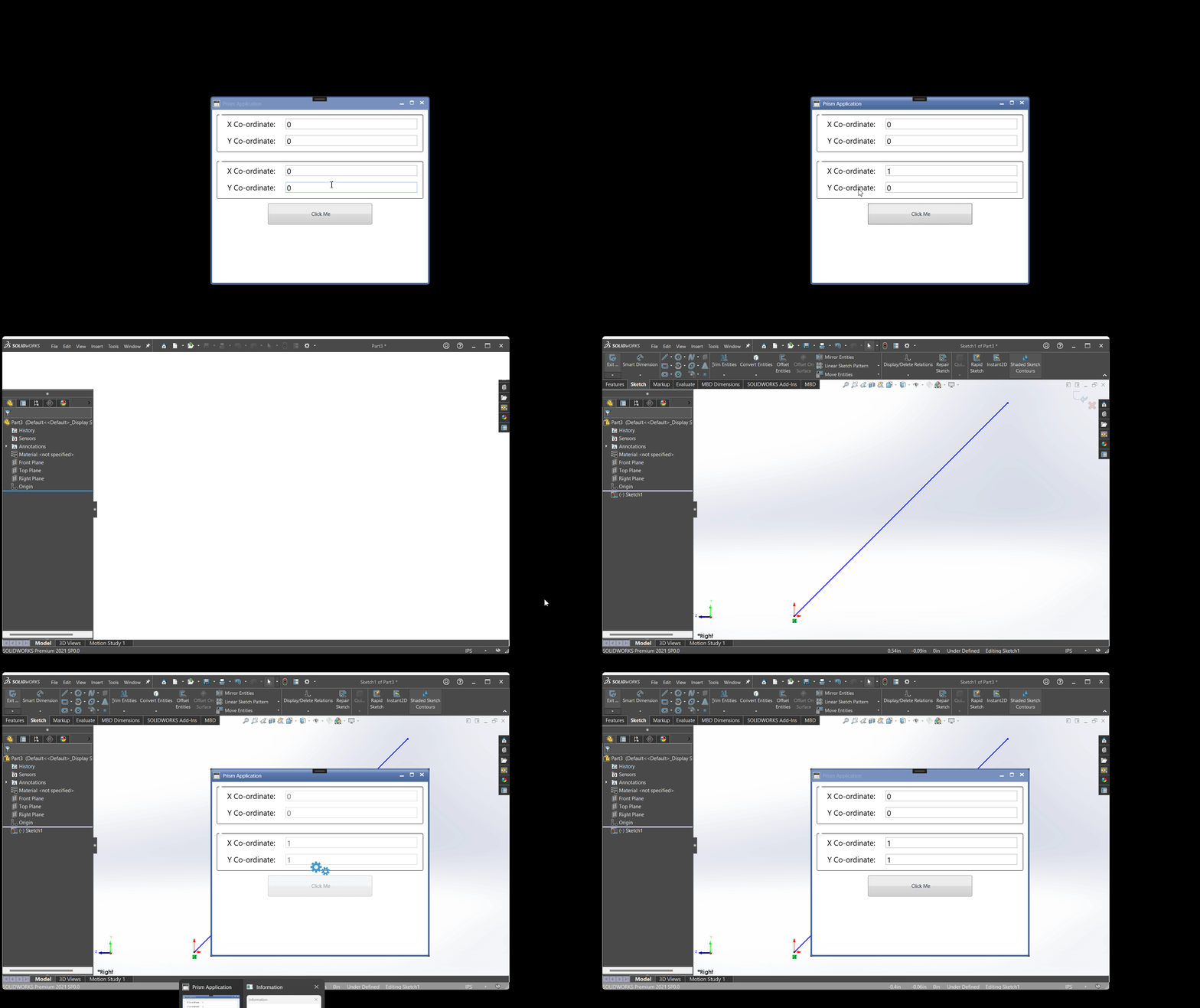
This is it !!!
I hope my efforts will helpful to someone!
If you found anything to add or update, please let me know on my e-mail.
Hope this post helps you to Create Line in Solidworks SketchSketch from WPF PRISM Application.
If you like the post then please share it with your friends also.
Do let me know by you like this post or not!
Till then, Happy learning!!!